

Download Windows Password Unlocker – Free, Secure, Fast Password Recovery Tool for Windows
Forgetting your Windows login password can be frustrating, especially when you need immediate access to your files, settings, or work. Windows Password Unlocker is a powerful, secure, and reliable software solution designed to help you regain access to your locked Windows account in minutes. Whether you're using Windows 10, 8, 7, Vista, or XP, this tool offers a straightforward method to bypass or reset your forgotten password.
With a simple bootable disc setup, it allows you to reset your password without data loss, making it an essential recovery tool for both home users and IT professionals. The software is available for free download and is compatible with both 32-bit and 64-bit systems, including desktops and laptops. While the initial setup requires a blank CD or USB drive, the process is well-documented in the included help guide.
Once you boot from the disc, the interface is intuitive, and resetting your password becomes a matter of a few clicks. It’s a must-have utility for anyone who’s ever been locked out of their system due to a forgotten password.
How Windows Password Unlocker Works: Step-by-Step Recovery Process
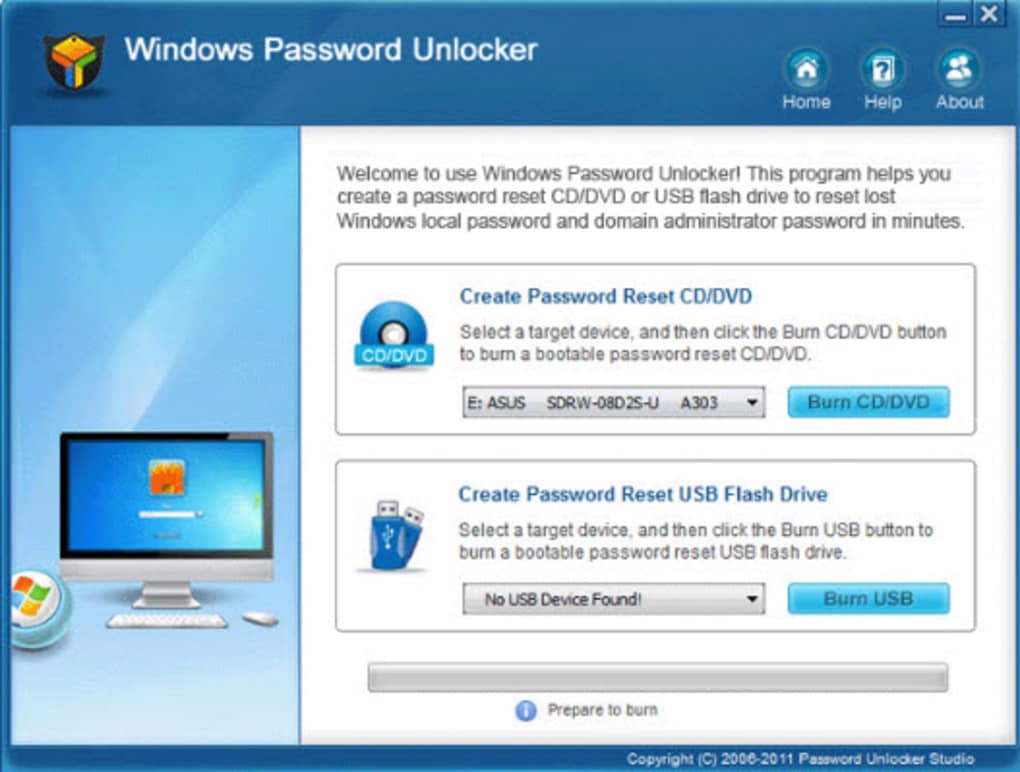
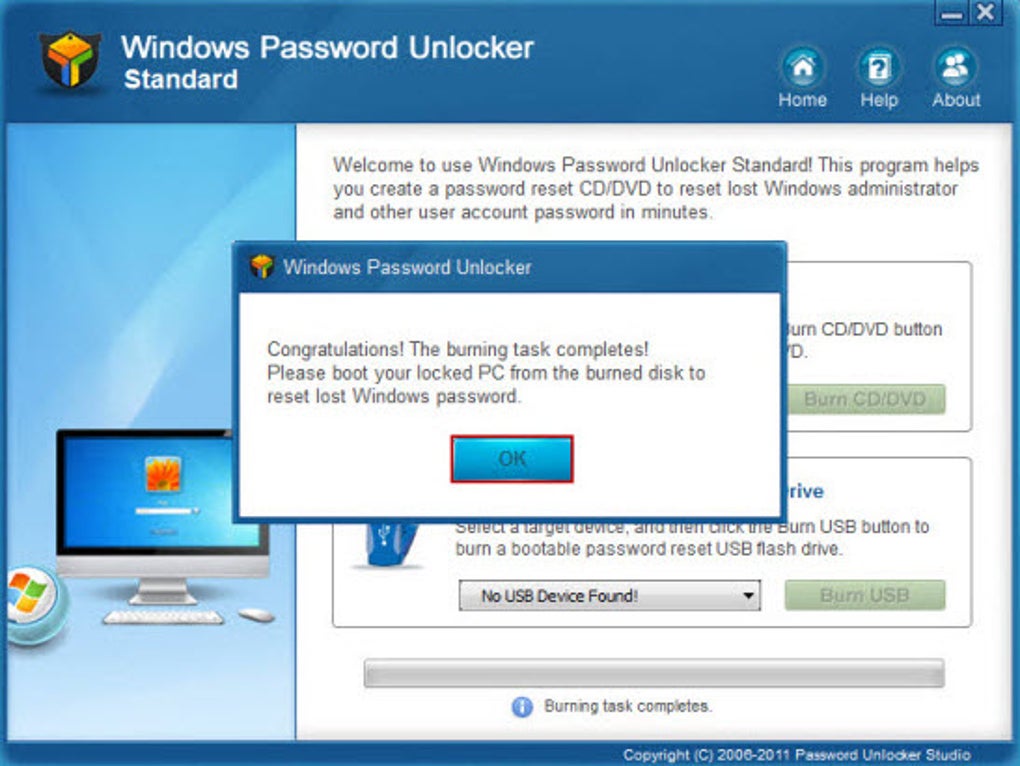
Recovering a lost Windows password with Windows Password Unlocker is a straightforward process once you understand the workflow. The software doesn’t run inside Windows—it operates as a standalone bootable environment, which is why you need to create a bootable disc using the provided ISO file. First, download the tool and extract the package, which includes three key components: the BurnCDCC tool, the help documentation, and the ISO image. To begin, use BurnCDCC to burn the ISO file to a blank CD or USB drive. This step is crucial—ensure your disc is properly written to avoid boot failures.
Once the disc is ready, restart your computer and enter the BIOS/UEFI settings (usually by pressing F2, F12, or Del during startup). From there, change the boot order to prioritize the CD/DVD drive or USB device. Save the settings and reboot.
The system will now load the Windows Password Unlocker environment directly from the disc. You’ll see a clean, text-based interface that lists all local user accounts on the system. Select the account you need to reset, and choose the option to remove or set a new password.
The process takes less than a minute, and once complete, you can safely remove the disc and reboot into Windows with your new credentials.
It’s important to note that the trial version of Windows Password Unlocker allows you to perform all steps except the actual password reset. This gives users a chance to test the tool and ensure compatibility before purchasing the full version. The software is designed with security in mind—no data is accessed or modified during the process, and all changes are isolated to the password field. This makes it a safe and non-destructive solution for password recovery, especially valuable in emergency situations.
Key Features and Benefits of Windows Password Unlocker
Windows Password Unlocker stands out among similar tools due to its combination of reliability, ease of use after setup, and broad compatibility. Here are the core features that make it a top choice for password recovery:
- Bootable Recovery Environment – The software runs independently of Windows, allowing you to reset passwords without needing access to the operating system.
- Support for All Major Windows Versions – Fully compatible with Windows 10, 8, 7, Vista, and XP, both 32-bit and 64-bit editions.
- Data-Safe Password Reset – No files or system settings are deleted or altered during the process.
- Simple Interface – Once booted, the tool provides a clear, no-nonsense menu to select and reset user accounts.
- Free Download with Trial Access – You can download and test the tool before purchasing, ensuring it meets your needs.
- Support for Multiple User Accounts – Easily reset passwords for multiple local accounts on a single machine.
- Compatible with Desktops and Laptops – Works on both fixed and portable systems, including modern UEFI-based machines.
One of the standout benefits is its minimal footprint and fast execution. The tool loads quickly and completes the reset process in under a minute. It’s also ideal for IT administrators managing multiple computers, as it can be deployed across a network or used on individual machines without installation. The inclusion of a detailed help file ensures even beginners can follow the steps confidently. Whether you're recovering your personal account or assisting a family member, Windows Password Unlocker delivers a secure, efficient, and dependable solution.
Compatibility, Installation, and Usage Tips
Windows Password Unlocker is designed to work across a wide range of hardware and operating systems. It supports Windows 10, 8, 7, Vista, and XP, both 32-bit and 64-bit versions. This broad compatibility ensures it can be used on nearly any PC or laptop manufactured in the last decade. The software is compatible with both traditional BIOS and modern UEFI systems, though users may need to adjust boot settings accordingly. For UEFI systems, ensure Secure Boot is temporarily disabled to allow booting from external media.
Installation is not traditional—there’s no installer. Instead, you use the provided BurnCDCC tool to write the ISO file to a blank CD or USB drive. This creates a bootable recovery disc.
Once created, the disc can be reused on multiple machines. To use it, simply insert the disc into the locked computer, restart, and access the boot menu (often via F12 or Esc). Select the disc as the boot device, and the tool will launch automatically.
For users unfamiliar with BIOS settings, the included help document provides clear, step-by-step instructions with screenshots. It covers everything from identifying the correct boot key to troubleshooting common issues like "No boot device found." The tool also supports multiple languages, making it accessible to a global audience. A key tip: always back up important data before attempting any password reset, even though the tool itself doesn’t modify files. This precaution ensures peace of mind.
Pros and Cons: Honest Review of Windows Password Unlocker
Every tool has its strengths and limitations. Here’s a balanced look at what makes Windows Password Unlocker a strong contender—and where it could improve.
Pros
- Fast and reliable password recovery without data loss
- Supports all major Windows versions and architectures
- Secure, standalone environment prevents unauthorized access
- Free trial allows full testing before purchase
- Simple interface once booted from disc
- Reusable bootable media (CD/USB)
Cons
- Initial setup requires a blank disc and BIOS navigation (can be intimidating for beginners)
- Not available as a direct Windows installer (must use ISO)
- Only resets local account passwords (does not handle Microsoft accounts)
- Full version required for actual password reset (trial is limited)
Despite these minor drawbacks, the pros far outweigh the cons, especially for users locked out of their systems. The tool is ideal for emergency access and is trusted by many home users and small businesses.
Frequently Asked Questions (FAQ)
Can Windows Password Unlocker reset a Microsoft account password?
No, Windows Password Unlocker only works with local user accounts. It cannot reset passwords for Microsoft accounts, which are linked to online credentials. For Microsoft account issues, you’ll need to use the official Microsoft password recovery process.
Is Windows Password Unlocker safe to use?
Yes, it is safe. The tool runs in a standalone environment and does not access or modify your files. It only resets the password field, making it a secure option for recovering access without data loss.
Do I need a CD to use this tool?
Not necessarily. While the tool is designed to be burned to a CD, you can also use a USB flash drive. The BurnCDCC tool supports both media types, giving you flexibility based on your hardware.
Can I use Windows Password Unlocker on a laptop?
Yes, it works perfectly on laptops. The tool is compatible with both desktop and laptop computers, including modern UEFI-based systems.
Is there a free version available?
Yes, you can download a free trial version that allows you to test the tool and perform all steps except the actual password reset. The full version is required to complete the reset process.
Final Verdict: A Must-Have Tool for Forgotten Passwords
If you’ve ever been locked out of your Windows PC due to a forgotten password, Windows Password Unlocker is your best solution. It’s fast, secure, and reliable, offering a proven method to regain access without losing any data. While the setup requires a bit of technical know-how, the detailed help guide ensures even beginners can succeed.
With support for all major Windows versions and compatibility with both desktops and laptops, it’s a versatile tool for home and office use. Whether you're a casual user or an IT professional, this software delivers peace of mind when you need it most. Download Windows Password Unlocker today and take control of your system access—no more frustration, just instant recovery.
Download now and unlock your Windows system in minutes!